A meta-analysis in Excel is technically possible at a basic level, but it comes with serious limitations that make it unsuitable for publishable research. You can use Excel to calculate weighted mean differences, compute a simple fixed-effect pooled estimate using inverse-variance weighting, and organize extracted data into summary tables. However, Excel cannot produce forest plots, run random-effects models with restricted maximum likelihood estimation, perform publication bias tests like Egger's regression, or execute sensitivity analysis and meta-regression. Peer reviewers and journal editors routinely reject meta-analyses conducted entirely in Excel because the software lacks the statistical infrastructure, transparency, and reproducibility that evidence synthesis demands. If you are considering Excel for your meta-analysis, this guide walks you through exactly what you can accomplish, where Excel fails, and which free tools offer a better path to publication.
Why Researchers Turn to Excel for Meta-Analysis
Researchers gravitate toward Excel for meta-analysis because it feels familiar. Nearly every academic has used Excel for data entry, basic statistics, or chart creation at some point during their training. The learning curve appears nonexistent compared to specialized software, and the cost is zero for anyone with a Microsoft Office subscription. Graduate students working on their first meta-analysis often start in Excel simply because they do not know that dedicated tools exist.
There is also a perception that meta-analysis is "just averaging studies together," which makes Excel seem like a natural fit. If you can calculate a weighted mean in a spreadsheet, the reasoning goes, you can do a meta-analysis. This assumption is dangerously oversimplified. A proper meta-analysis involves statistical modeling, heterogeneity assessment, graphical diagnostics, and multiple robustness checks that go far beyond weighted averaging. The Cochrane Handbook for Systematic Reviews of Interventions explicitly recommends using validated statistical software for meta-analytic computations, and no major reporting guideline considers Excel an acceptable analysis platform.
That said, Excel is not entirely useless in the meta-analysis workflow. Many experienced researchers use Excel for data extraction, organizing study characteristics, and performing preliminary calculations before importing data into dedicated software. Understanding what Excel can do, and precisely where it breaks down, helps you make an informed decision about your analysis pipeline.
What You Can Actually Do in Excel: A Step-by-Step Walkthrough
For educational purposes, here is what a basic fixed-effect meta-analysis looks like in Excel. This approach works for understanding the mechanics of pooled estimation, but it should not be used for a publishable analysis.
Step 1: Set up your data extraction table. Create columns for study identifier, sample size per group, mean and standard deviation for treatment and control groups, and any additional moderator variables. This organizational step is genuinely useful and many researchers continue using Excel for data management even when they analyze data in other software.
Step 2: Calculate individual study effect sizes. For a standardized mean difference (Cohen's d or Hedges' g), you can enter the formula directly into Excel cells. Hedges' g applies a small-sample correction factor (J = 1 - 3 / (4df - 1)) to Cohen's d, and both calculations are straightforward in a spreadsheet. For odds ratios or risk ratios, you compute the log-transformed ratio and its standard error from the 2x2 contingency table. The effect size estimator on Research Gold can verify your manual computations.
Step 3: Compute inverse-variance weights. Each study receives a weight equal to 1 divided by the square of its standard error (wi = 1/SEi^2). In a fixed-effect model, these weights determine how much each study contributes to the pooled estimate. Larger studies with smaller standard errors receive more weight, which is the correct behavior when you assume a single true effect size across all studies.
Step 4: Calculate the fixed-effect pooled estimate. The pooled effect size equals the sum of (wi * effect_sizei) divided by the sum of wi. You can implement this with SUMPRODUCT and SUM functions in Excel. The standard error of the pooled estimate equals 1 divided by the square root of the sum of weights.
Step 5: Compute a confidence interval. The 95 percent confidence interval is the pooled estimate plus or minus 1.96 times the pooled standard error. Excel can handle this arithmetic without difficulty.
Step 6: Test for heterogeneity with Cochran's Q. Cochran's Q statistic equals the sum of wi * (effect_sizei - pooled_estimate)^2. You can compute this in Excel and compare it to a chi-squared distribution with k-1 degrees of freedom using the CHISQ.DIST.RT function. You can also calculate I-squared as (Q - df) / Q * 100, following the framework introduced by Higgins, Thompson, Deeks, and Altman (2003). An I-squared value above 50 percent indicates substantial heterogeneity.
This six-step process produces a numerically correct fixed-effect pooled estimate with a confidence interval and a basic heterogeneity test. At this point, however, you have reached Excel's ceiling. Everything beyond this requires capabilities that spreadsheet software simply does not offer.
Where Excel Fails: The Critical Limitations
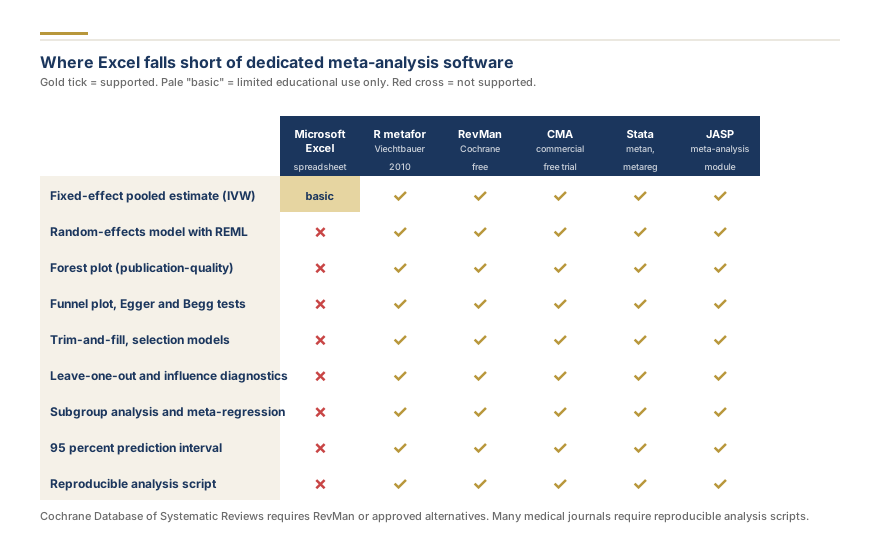
The gap between what Excel can do and what a publishable meta-analysis requires is vast. These are not minor inconveniences; they are fundamental barriers that prevent Excel-based analyses from meeting the standards expected by peer reviewers, journal editors, and organizations like Cochrane.
No random-effects models. The fixed-effect model assumes every study estimates the same true effect size, which is rarely appropriate in practice. The random-effects model, originally formalized by DerSimonian and Laird (1986), accounts for between-study variance (tau-squared) in addition to within-study sampling error. Modern meta-analyses typically use restricted maximum likelihood (REML) estimation for tau-squared, which produces less biased estimates than the DerSimonian-Laird moment estimator. Implementing REML in Excel would require iterative optimization algorithms that the software does not natively support. You cannot simply enter a formula; you would need to write VBA macros that replicate what statistical packages do automatically, and even then validation would be extremely difficult.
No forest plot interpretation guide. Forest plots are the standard visual summary of meta-analytic results, displaying individual study effect sizes, confidence intervals, weights, and the pooled estimate with its diamond. Excel's charting engine cannot produce publication-quality forest plots. While some researchers have created approximations using stacked bar charts and error bars, these workarounds produce visually poor results that reviewers immediately recognize as non-standard. The forest plot software at Research Gold produces publication-ready forest plots in seconds, completely free.
No funnel plots or publication bias tests. Assessing publication bias requires funnel plots (scatter plots of effect size versus precision), Egger's regression test for funnel plot asymmetry, Begg's rank correlation test, and trim-and-fill analysis. These methods require specialized statistical computations and plotting capabilities that Excel does not provide. The funnel plot creator handles this analysis with proper statistical tests included.
No sensitivity analysis. Leave-one-out analysis, influence diagnostics, and outlier detection require iteratively removing each study, re-running the entire meta-analysis, and comparing results. Doing this manually in Excel for a meta-analysis with 20 studies means performing 20 separate analyses and tracking every result. Dedicated software automates this process entirely.
No subgroup analysis or meta-regression. Exploring sources of heterogeneity through subgroup analysis (splitting studies by a categorical moderator) or meta-regression (modeling the relationship between a continuous moderator and effect size) requires statistical modeling capabilities that Excel lacks. Meta-regression, in particular, uses weighted least squares or maximum likelihood estimation with study-level predictors, which is beyond what spreadsheet formulas can handle.
No prediction intervals. While confidence intervals describe the precision of the pooled estimate, prediction intervals describe the range within which the true effect of a future study is expected to fall. Prediction intervals are increasingly required by journals and reporting guidelines, and they cannot be computed correctly without proper estimation of tau-squared through a random-effects model.
No reproducibility or audit trail. When a reviewer asks you to re-run your analysis with a different model specification or excluding certain studies, you need to demonstrate that your results are reproducible. Excel workbooks with embedded formulas are notoriously fragile; a single misplaced cell reference can invalidate an entire analysis without any warning. Published research demands transparent, reproducible analytical workflows.
Why Peer Reviewers Reject Excel-Based Meta-Analyses
Understanding the reviewer perspective helps explain why Excel is not accepted as a meta-analysis platform, even when the numerical results happen to be correct.
Reviewers expect named statistical software. The methods section of a meta-analysis should specify the software used for analysis. Stating that you used Excel immediately raises concerns about methodological rigor. Reviewers who see "Microsoft Excel" in the statistical methods section will scrutinize every aspect of the analysis more aggressively, and many will recommend rejection on software choice alone. In contrast, reporting that you used R with the metafor package (Viechtbauer, 2010), Stata, Comprehensive Meta-Analysis (CMA), or RevMan (developed by the Cochrane Collaboration) signals that validated, peer-reviewed algorithms were used.
No validation of formulas. Dedicated meta-analysis software has been validated against known benchmarks and undergoes continuous testing by the research community. When you implement formulas manually in Excel, the burden of proof for correctness falls entirely on you. Reviewers have no way to verify that your cell references are correct, that your weighting scheme is properly implemented, or that you did not introduce rounding errors that propagated through the analysis.
Missing standard outputs. Reviewers expect to see forest plots, heterogeneity statistics (Q, I-squared, tau-squared), a description of the estimation method, and results from at least basic sensitivity analyses. An Excel-based analysis typically cannot produce most of these outputs, which leads to incomplete reporting that violates the PRISMA 2020 reporting guidelines (Page et al., 2021).
Journal policies are increasingly explicit. Several high-impact journals now specify in their author guidelines which software platforms are acceptable for meta-analyses. The Cochrane Database of Systematic Reviews requires RevMan or approved alternatives. Many medical journals require reproducible analysis scripts, which Excel cannot provide.
Struggling to choose the right software for your meta-analysis? You do not need to learn R or buy expensive licenses. Research Gold offers free online tools including a build a forest plot, standardized mean difference calculator, and free funnel plot maker that handle the statistical heavy lifting. For a complete, publication-ready meta-analysis conducted by biostatisticians, get a custom project quote and get a detailed plan within 48 hours.
